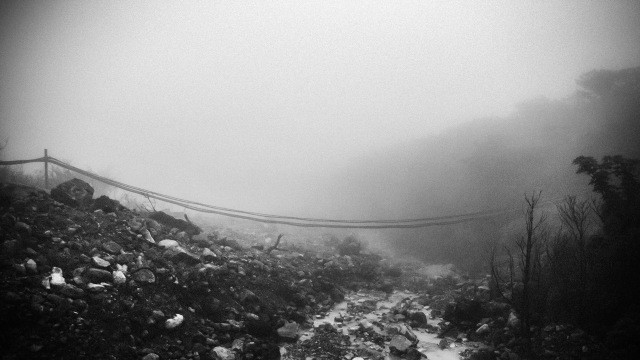
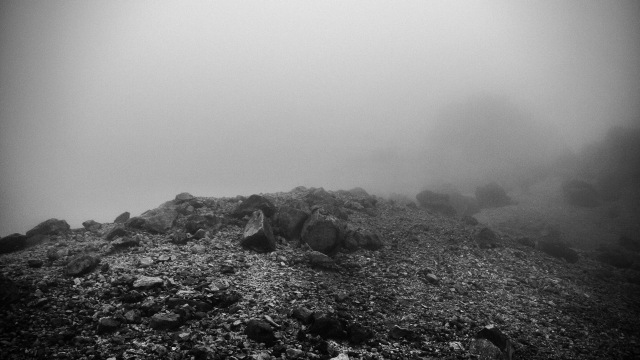
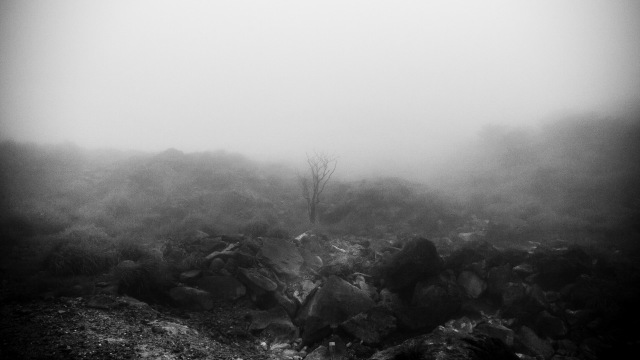
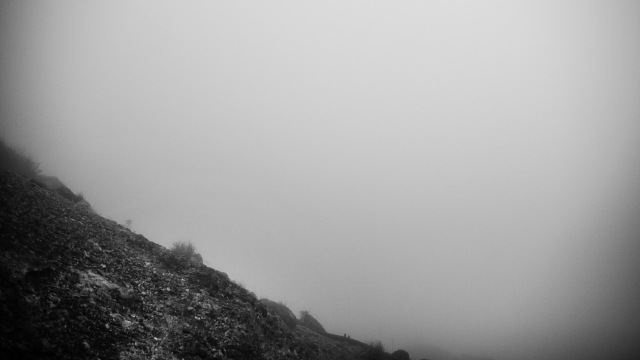
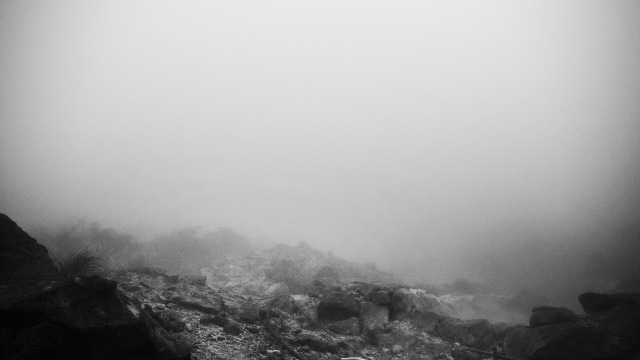
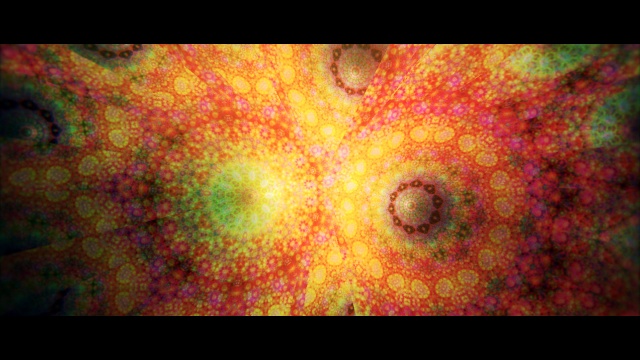
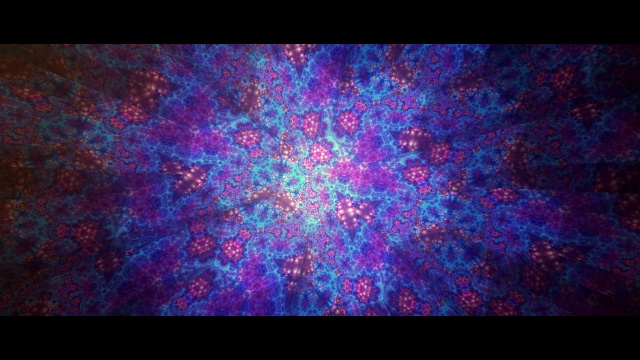
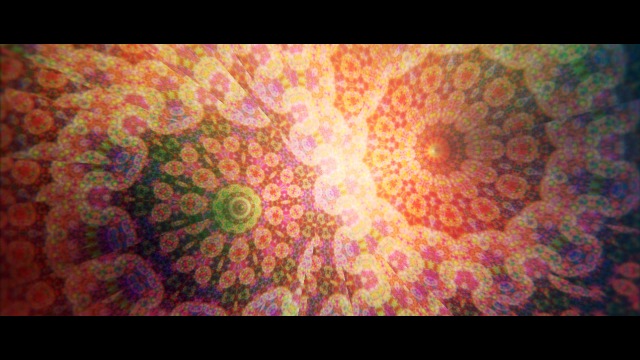
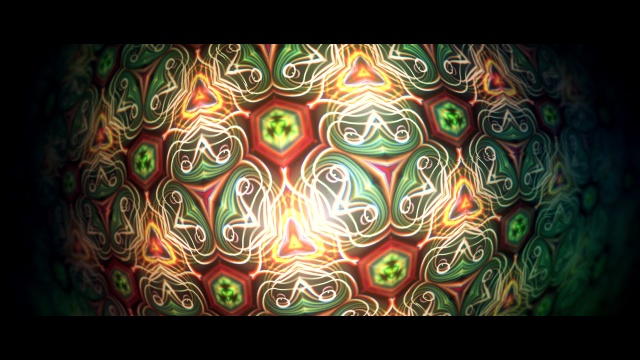
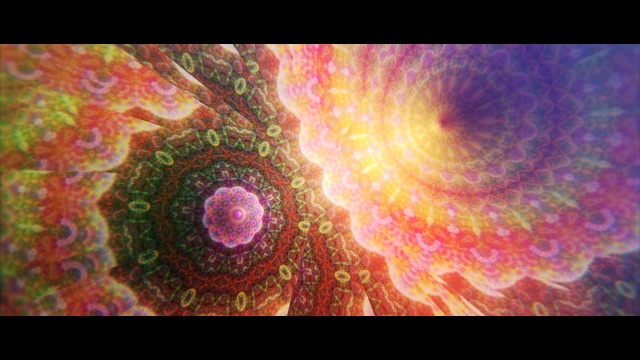
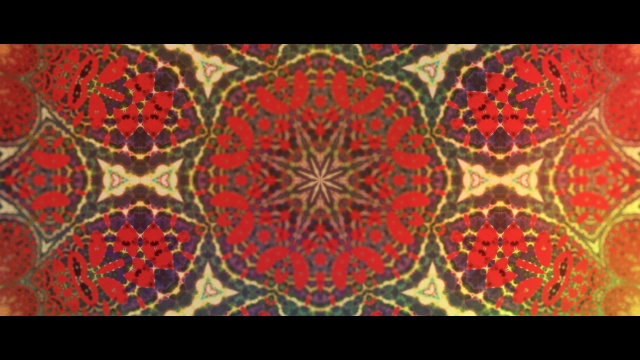
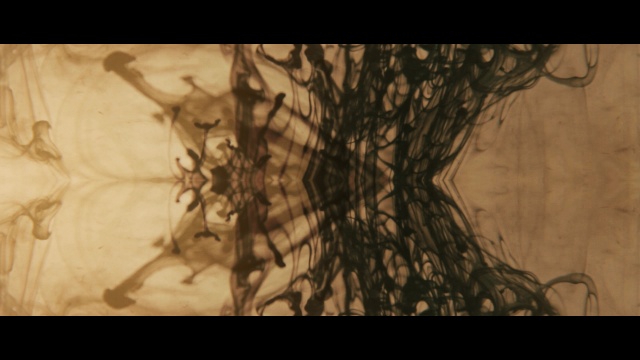
And I was here
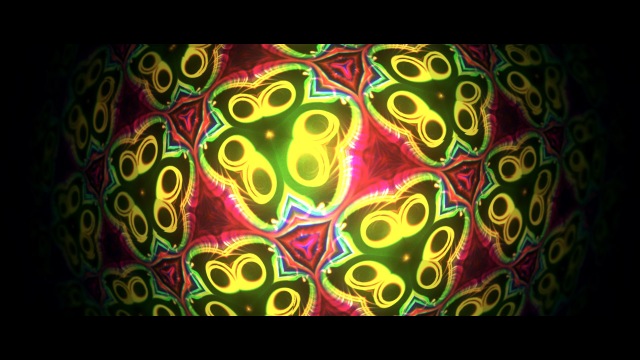
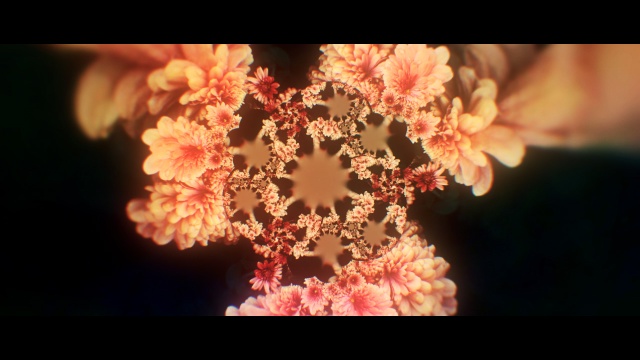
Cold landscapes explored with Artmatic Voyager. 4000×2500 px renders.
- – -
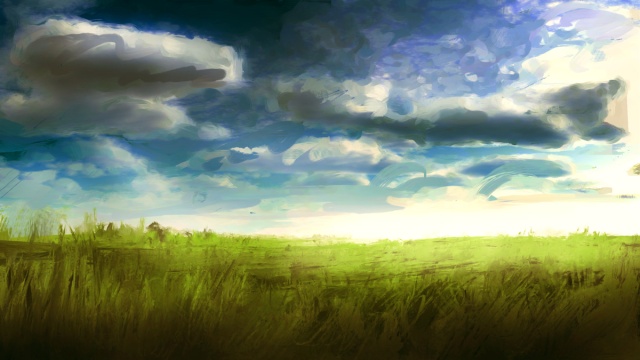
Together and Forever Gone
Some generative works using Studio Artist 4 and a bunch of pictures. The one thing about this process is that it’s mostly automatic once you set the brush preset up. I made some minor edits later on using ACR. It’s an interesting effect and not that hard to do either, took a bit of thinking to get the thing working right but the overall process wasn’t too bad.
Each image is around 4000 pixels wide although for web purposes I’m uploading just the small versions.
- – -
What I Saw
Sometime ago I was experimenting with Artmatic, and I had this really old preset which I did some similar things so I thought I’d re-do stuff and try making additional designs based on it. Here are some results. I tried several color schemes from Aztec to Inca styled colors… though in the end it went all over the place. Oh well. Fun stuff. These were post processed using ACR.
- – -
How to: Creating a Super Simple Procedural Wood Texture in Filter Forge
Somehow if you’re a 3D artist, you always end up looking for wood textures. Whether you are a student or a professional or a hobbyist, you just always run into a need or want for that wood texture. You may go on Google and search up some imagery, you can always go to some texture resource website and dig some textures up. Very cool. But what about making your own?
Important note: Now I’m going to be using a program called Filter Forge 3, this is a fantastic piece of node-based fiter/generator creation program you can use to make all sorts of stuff. In this case I’ll be using it to make the wood texture I’m talking about. Though let me tell you one thing: you don’t always need Filter Forge to do this tutorial. It kinda takes skill but you can essentially do almost the same thing in programs like Adobe Photoshop with a little bit of creativity and understanding. So it’s really not just for Filter Forge users.
Another Important Note: This is a very very simple tutorial. I didn’t include specific numbers because I think you… can really just find out those numbers yourself.
The Idea
Here’s the resulting texture of the wood we’re making.
Alright so it’s pretty generic but we have lots of fine details, and some patterning going on. So what’s happening here? The basic idea is this: I basically have this in 3 layers which produces the effect.
Lets Break it Down Further
Alright I want this whole thing to be as basic as possible, given that some people think this is hard. No, it’s easy. Actually very very easy. So let’s begin our journey through this texture.
The first layer is just a perlin noise pattern, the second is a perlin noise pattern with a zebra-like profile, the final layer adds the thin, noisy grains. That’s our basis for the texture. The point here is that we’re using perlin noise generators to create much of the basic look of it. And by layering them, we achieve the apperance. The rest of the process is coloring the combined noise textures in a way to convey the wood feel.
Here’s how the wood texture looks without its color.
This black and white image can become several things: it can be a bump map or a map for colorization. But we’ll skip that for now and take a look at the core construction of this texture.
The first base layer looks like this a general stretched perlin noise:
Yup. That’s the basis. Now the second layer:
There’s a bit more going on with this layer. You can see the “zebra effect” I’m talking about here clearly. The last layer looks like this:
Alright, so those are the 3 key layers and when combined they basically give you that black and white image map you saw earlier.
Because I’m using Filter Forge, generating these kinds of noise patterns isn’t that complicated. It does take a bit more using programs such as Photoshop though and I encourage you to experiment methods in creating those noise patterns you see above. I figure though, I’ll also make another experimental / tutorial post on how you can make those textures right in Photoshop without 3rd-party-plugins in the near future.
In Filter Forge the node structure would look like this:
Not that hard right? Alright, we can do a little bit of optimization here. Since I know that I can control the profile of the perlin noise patch, I can feed a curve to simulate the threshold node, hence removing 1 step of the process.
It’s really up to you on if you want to do it either way. But of course, the more optimized the faster your filter will run. Pretty simple.
Coloring the texture is super simple. It it only takes 2 components: the profile gradient and elevation gradient.
And that’s really all there is to this texture! I tried to keep this tutorial as simple as possible giving you the really basic idea of how you’d go about producing the look you desire. Of course, if you want more details, you can add more grain, you can add more roughness via the perlin noise components, but ultimately what it comes down to is the layering and breaking it down into those core components. Once you define the basics, you can then move on to create elaborate, detailed textures you want.
Here’s what my wood generator looks like with all the rest of the components and controls.
Sure it’s a little more involved but most of it is just a chain of alternative styles and looks just so I have a bit more control over my end result. You may be looking at this and going “that’s … complex” but really the basic idea hasn’t really changed and the additional chain of components you see get switched on or off by a switch component.
So there you go. A very elementary tutorial / introduction on how you can produce the wood texture from absolutely nothing.
By the way, because Filter Forge can make this texture seamless so this can become a nice tiling texture for your 3D scene or object.
If you have any questions or commentary just write as a reply. I’ll try to respond to them and also I may follow up with another post too.
In Depth: Atmosphere and Depth
What makes that image look good? Is it the background? The details? The characters? Sure, those do make an image look nice and pleasing to look at. And it does depend on what you’re dealing with as well. If you’re presenting a 3D model, you may have nice textures, interesting shapes, nice flow… whatever it may be the image looks good based on attributes. But let’s say you’re dealing characters in a scene. So what do you do? You try to fit that character within the scenery and you follow common attributes such as lighting, perspective, color… so on. But what really adds to everything is the atmosphere. It’s the extra touch that really really kicks that image from “boring” to “amazing.”
Now, when I say atmosphere, I don’t mean just things like fog, clouds, sky, or just stuff like that. Yes, they’re atmosphere but the atmosphere I’m talking about deals with creating and giving the scene weight, meaning, and spacial context. It’s “color grading” or “color correction” as some people call it, but there’s a bit more when adding atmosphere and I want to discuss that.
So this blog post isn’t really a tutorial, but it shows what I’ve been doing for my thesis film “The Door to Tomorrow.”
Let me give you an example of what “atmosphere” is about. First, here’s a frame from my up-coming film “The Door to Tomorrow.” I received a file from my animator, Robyn Stanford, who animated the characters you see here. The background is by me.
Now some people consider this done. Not in my world. Given the background, the characters here aren’t shaded properly which makes them just float right on top of the background. Ok, the easy way to fix this is to add some form of shading. Fortunately this task is slightly easier for me given that the characters are just flat, 2D shapes in 3D space. All I have to do is add a gradient. Of course, I can go very fancy, but time doesn’t permit me. Now if you have human characters or anything else, you’ll have to work on shadows and that’s a different story. For now, we’ll just keep it simple.
So now it’s somewhat obeying the mood of the shot. The light here passes from right to left so I gave the characters a simple gradient (ramp in After Effects.) Not too bad but it needs more. Let’s add some shadows.
Now the two characters are interacting with the background a bit more. The shadows here aren’t fancy shadows, and while I would appreciate a realistic shadow, I don’t have time for that. So I came up with a quick way to produce rough shadows. I first duplicated the character layer, then using “Colorama” filter (otherwise I could have used an inverted alpha channel) and turned everything black. I then offset the layer to the left just a tad bit and added directional blu which makes it look like it’s fading by the distance. Very simple but it works in this case.
Next, I created an adjustment layer with more gradients to add further sense of lighting. The overall image looks dimmer now, but we’ll get to fixing that later.
This part of the film isn’t the happiest moment. Apex (the blue square) tells his friend Arc (the green circle) that he is terminally ill, given that Arc attempts to provide him some comfort. Given the weight of the moment, I felt adding the gradient helps extenuate not only the lighting, but the mood of the shot.
Ok, let’s fix the ultra dimness. Some people would stop here saying it’s “good enough” but of course it’s not! It just looks dimmer and while it does feel appropriate, it doesn’t appeal. To fix that, I added a glow.
Glow really helps. I mean it. It kicks up highlights, blends background colors with foreground colors, and it really adds that “atmosphere” to the scene.
This scene was meant to also be during a sunny, warm evening. So to give it further feeling of time, we’ll do some color grading.
Now, you have a sense of time for the shot. The super yellow highlight on the right hand side of Apex does bug me a little, but it’s not such a huge issue.
So we went from just flat… to moody. I generally apply several layers of filters to accomplish the look I want. Given the full scope of the film, it’s important to note the flow and continuity of color and style. This is where color charts and schemes become very very useful. Of course, if you’re doing this independently, you may have already picked up on the style you’re going for so maybe you don’t need schemes and color charts, but you should save presets of color grading chains to help yourself save some time.
I always see people who just apply curves to give the image more contrast (or less.) That’s a good start, and depending on what you’re thinking of you may not need more. But of course, it’s also a good thing to push further and punch the look and feel for the work you’re doing.
Adding that extra touch of color is what makes the image or film powerful. We’re not just talking about “making stuff look good” we’re talking about telling the story through color, lighting, atmosphere… framing… everything.
More Experiments with Lines
These are honestly quite an eye-sore but that’s more like the fun of it
Yup! Super complex fun Artmatic creations. These were edited in ACR, consequently all renders are poster quality.
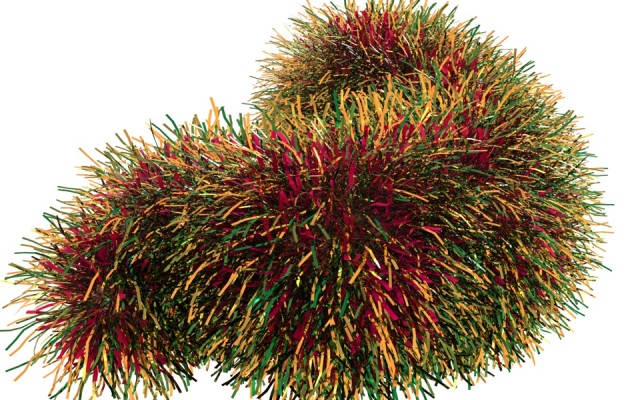
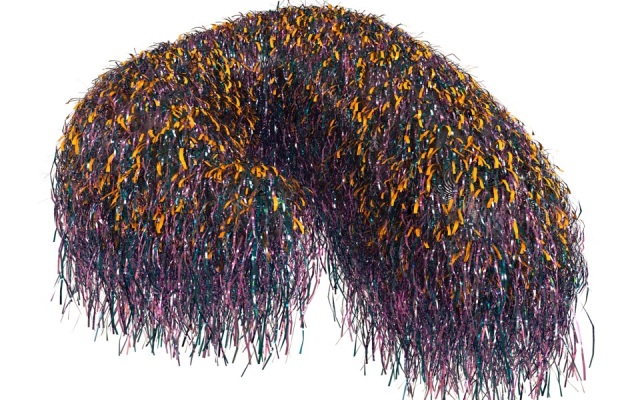
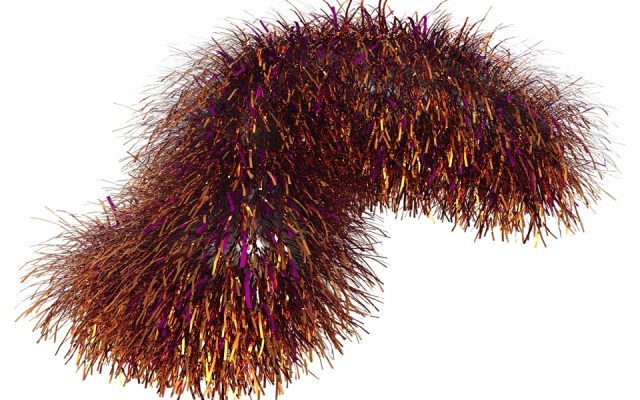
Experiments with Lines
Some experiments with patterned lines I tried back in 2011. Never really got to publish them so here they are
These were done using Artmatic 5 and edited mildly using ACR.
In Depth: Multi-level highpass sharpening in FilterForge
This post discusses some stuff regarding this filter I produced in FilterForge a while ago: http://www.filterforge.com/filters/9726.html you can download the filter there too.
I’m not really THAT technical with stuff. I honestly don’t know all the math that goes behind each node I use in FilterForge but I have some clues and hints on how some of the stuff works.
Either way, some time ago I wanted to produce a multi-level sharpen filter. Unlike a single sharpen filter, this “dream” filter basically allows for a broad range of sharpening. To do this I used Filter Forge.
Let me show you some pictures of what happens when I use it. First we have our original photograph.
The image has not been processed in anyway…. now… for the processed image.
This is very subtle (I’m using default values) but you can see some changes in the contrasts of various areas. Some areas “pop” now more than others.
Some comparison here so you can see what’s different. It’s still kinda subtle but you can mildly see what’s happening.
What makes it pretty neat is how this sharpen filter works. It’s on multiple levels of detail allowing you to sharpen small, medium, and large details separately. So if you ever want to sharpen a LARGE area then you can turn down the small and medium sharpen filters and leave the large sharpen with higher values. If you want small details to pop, you can do so too.
To show you what can visually happen here’s another shot at the image above.
With a couple additional nodes I was able to produce a filter that allows for various degrees of control while sharpening a photograph.
Now for the exciting technical aspect of how this was accomplished! You probably need to click and see at the full resolution
The basics go like this. I have multiple highpass filters with different radius settings. The radius values weren’t chosen mathematically, they were chosen based on visual output so nothing fancy there. Then you see this huge stack of Min and Max nodes which allow for combinations of the nodes. This is really the fun part because it’s where I didn’t know what to do. I began combing the highpass nodes using various tools and then I realized I should just stick with min and max because of the way they operated. Also the way they looked seemed valid enough for usage. I then used a blend node (which was set to overlay as you’d expect.)
Now this is the really weird part. There are two things being mixed here: two separate chains for min and max nodes. To combine them both, I used a blend node. I lastly gave the user control over which they want to chose. If they want a brighter image then they can slide the control to achieve what they want visually.
And that’s basically all there is to this filter!
Here are some more examples of the filter in action.
Of course you do have to be careful of over-sharpening images. I just wanted to show you what it basically can do for you.
Things In The Sea
I was thinking about bioluminescent jellyfish as I played around with Artmatic.
The previous post explains about what you see here. Although unlike the last Artmatic structure I used, this one uses a similar tree structure. The modification adds a new effect.
- – -
In Depth: Using Artmatic 5
I’ve been using Artmatic since the first version came out. I don’t even know how long ago that is but I recall the first time I opened the program and how much I was just blown away by the visuals you can create with it. Ever since I’ve been a big fan of Artmatic and its endless possibilities. Come to think of it, I basically grew up with the program, and in all honesty I wouldn’t be who I am right now without it.
Most of my Artmatic experiences relied heavily on playing with Mutations and the ultra-awesome randomizer feature. Though I eventually realized I wasn’t getting anywhere with that. I had ideas but I wouldn’t get there just by hitting the random button, and so I began to play with the structure. Although here’s the really interesting thing about this program. It’s really easy to play with but gets very very deep with a couple clicks of a button.
Let me show you some pictures I’ve been lately producing with the program. (Post processing was done using Photoshop’s ACR)
They look very complex, but I assure you, what you see isn’t that hard to create. The catch is in the use of compiled trees and iterators. It’s pretty basic, but it can result in really cool things quite quickly.

Main components important in creating stuff
And that’s pretty clean simple. Much of the color comes from the 3 in 3 out component (the 3rd component from the very bottom of the tree.) Iterations are additive, hence resulting in a nice “glowing” look to it. You can choose other iterative modes but it seems additive works best in this case.
You can additionally change parameters around within the compiled tree. Let me show you what it looks like inside.

Basically what the picture says. Most of these components were chosen by trial and error, and I also look around in the given presets for inspiration and “how-tos”
That’s the basic idea behind it all. In post, I add grain, a bit of sharpness or glow depending on how I want the image to look. I also process some colors via Color Balance in Photoshop.
If anybody’s really interested in seeing this work in person, you can email me: skybase@gmail.com and I’d be happy to send you the Artmatic file. (Requires that you have Artmatic 5, although the structure can be recreated in Artmatic 4.8 as well.)
Update: images were broken. Fixed


1 comment